Wednesday, March 18, 2015

Best Free Ways to Convert BMP to JPG


Best Free Ways to Convert BMP to JPG


Have an image in BMP format that you need to convert to JPG/JPEG format? There are many different ways you can convert between different image formats and in this post I’ll mention the simplest and easiest ways that I know of.


These days you won’t really see as many images in BMP or Bitmap format because it’s not optimized for colored images that have blends or gradients. BMP is a really old format and was the default file format for Paint in Windows XP. In technical terms, it is lossless, but has pretty much no compression.


Lossless means that an image can be made smaller, but without any loss of quality. However, since BMP doesn’t have any compression, file sizes are enormous. A simple image with only a few colors can be hundreds of kilobytes in BMP format, but only 2 to 3 KB in JPEG format. That is why BMP is pretty much no longer used anywhere on the web.


JPEG, on the other hand, is a lossy format with high compression. This means the file sizes will be much smaller, but there will be a loss of quality each time the file is saved. JPEG format is great for detailed color photographs, but bad for logos and simple line drawings. That’s why most logos are saved in GIF format.


Lastly, BMP and JPEG both support up to 16 million colors, so any image you convert from BMP to JPEG should look almost exactly the same. Anyway, now that you know a little bit about the two image formats, let’s talk about converting BMP to JPEG.


Microsoft Paint


As long as you’re still not using Windows XP (and you shouldn’t be), then you can use Microsoft Paint to open the BMP file and quickly save it as a JPG file.


Open Paint and then open your BMP file. Next, click on File and then Save As. In newer version of Paint that have the ribbon interface, click on the little menu icon.


paint save as


In the Save as type dropdown, go ahead and choose JPEG as the file format. That is literally all you have to do to convert the BMP to JPG format.


save as jpg


If you happen to be using a computer or device that doesn’t have Paint installed, then there are other options, which I mention below.


Online Image Conversion


If you prefer to use an online tool for conversion, there are a couple of good options. Luckily, I’ve already written about converting between different file formats using two popular online tools: Zamzar.com and Online-Convert.com.


These sites let you convert between hundreds of different formats, but in our case, we only need to convert between two image formats.


online image convert


I like online-convert.com better because it gives you a lot of options. You can pick a file from your computer, paste in a URL or even grab an image from Dropbox. You can also choose the quality settings for the JPEG file, change the size, change the color, enhance the image and change the DPI.


Just click Convert file and after a few seconds, a download of the JPEG file will start automatically. ZamZar is also easy to use, but you have to give them your email address and they will then email you the file. Normally it works just fine, but there are some occasions when you don’t get an email until a couple of hours later or any email at all.


Third-Party Freeware


If you’re looking for a freeware program to convert BMP to JPG, you also have several options. Easy2Convert has a small freeware program that was written specifically for this type of conversion.
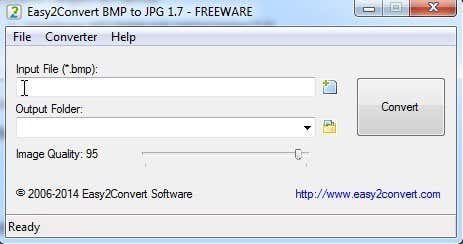

easy2convert


The freeware version lets you choose one BMP file, the output folder and adjust the image quality. They also have a PRO version that lets you batch convert BMP to JPG, but that’s $20 and probably not worth it unless this is something you do all the time.


The freeware program also has built-in command line support, so if you are familiar with using the command line, you can create a batch script to batch convert many files at once.


If that doesn’t work for you, then check out BMP to JPG Converter, which is another freeware that has some really nice features. Firstly, it lets you batch convert for free, so that’s good. The second useful feature is the ability to scan a folder and all of its subfolders for BMP files.


bmp to jpg freeware


This can prove really useful if you have a folder with a bunch of different types of files and you don’t want to move them all to separate directory manually. You can also choose the quality for the JPEG output and then click Start to begin the conversion process.


Those are about all the different ways you can get from BMP to JPG format without too much trouble or spending any money. If you have any questions, post a comment. Enjoy!


The post Best Free Ways to Convert BMP to JPG appeared first on Online Tech Tips.


Posted on 12:31 AM | Categories:

Monday, March 16, 2015

How to Customize Messages App theme iOS Cydia Tweak


How to Customize Messages App theme iOS Cydia Tweak


If you own an Apple iOS device and are bored of your default messages app theme layout then I have something really interesting tweak that will help you to customize your messages app theme layout the way you want to look. Though the default colors of message app is quite good but what if you could tweak them to different color combinations giving you all new refreshing look so if you are looking for a way to customize messsages app color layout then I am pretty sure you are gonna love this article and going to try this out immediately.


Well to customize messages app theme on your Apple iOS device you need to install Message Customizer Pro that requires your phone to be jailbroken first else this tweak is not going to work out. Message Customizer app is all new tweak designed for the apple iOS users giving them the flexibility to get control of the whole message app theme layout and change it the way they want to.


How to Customize Messages App iOS


How to Customize Messages App iOS Tweak : Message Customizer Features


We are going to customize messages app theme layout with the help of Message Customizer Pro App that gives you full power to change almost every finest look of the message app layout. It’s quite easy to use these app bearing a cool user friendly interface. Message Customizer gives you a variety of color combinations to choose from i.e Dark blue, Light Blue, Red, Purple, Yellow orange and much more. It allows you to configure the SMS and iMessage bubbles differently. With Message Customizer Pro you can change info text colors, background color, bubble width, bubble outlines and much more. Moreover you can assign specific theme changes to specific conversation and contacts also giving you easy chat experience while in a group chat.


How to Install Message Customizer Pro on your iOS Device : Steps to Follow


  • As I said above first of all make sure that your apple iOS device is jailbroken because this tweak works only for jailbreaked devices.


  • You can get this tweak from default BigBoss Repo but for that you need to pay 1.50$ and i don’t think that’s an advisable way to go when you can get it absolutely free of cost.


  • You can get it for free from the BYA Repo store and to do so you first need to Go to Cydia->Manage -> Sources -> Tap on Edit -> Select Add and type “repo.biteyourapple.net” and click add on source


  • Now go back to Cydia store and there search for Message Customizer Pro under BYA Respo.


  • That’s it now you can install Message Customizer and customize the whole messages app layout as per your looks and color choices.


The post How to Customize Messages App theme iOS Cydia Tweak appeared first on RushInformation.


Posted on 11:47 AM | Categories:

Saturday, March 14, 2015

Friday, March 13, 2015

Thursday, March 12, 2015

Moto E (2nd Gen) Launched in India @ 6,999 Only : Brief Review


Moto E (2nd Gen) Launched in India @ 6,999 Only : Brief Review


The much awaited Motorola Moto E 2nd Gen smart phone has been finally launched in India at a price of just Rs 6,999 exclusively available via Flipkart Online store like the previous Moto E Smart phone sale.  Before launching Moto E 2nd Gen smartphone company has already slashed the previously launched Moto E prices by Rs 1000 to clear the remaining stocks which will be later on going to be replaced by this Moto E 2nd Gen smartphone.


Motorola Moto E 2nd Gen comes with lot’s of new upgraded hardware and added features that the users were expecting and Motorola has done very well keeping their expectations alive with the launch of this smartphone. It features a 4.30-inches display screen with Corning Gorilla Glass 3 boasting a resolution of 540×960 resolution powered by 1.2GHz quad-core Qualcomm Snapdragon 200 CPU alongside 1GB RAM. Unlike previously launched Moto E this Moto E 2nd Gen smartphone sports front VGA camera along with 5MP A/F rear camera. It runs on the latest Android lollipop 5.0 version that houses a 2390mAh battery which is good enough to last a day or more with moderate usage.


Moto E 2nd Gen


What is more interesting is that for its first sale Flipkart has been offering several attractive offers till the stock lasts that includes 6 months of free unlimited music downloads from Saavn Pro,  flat Rs 250 off on purchase of lifestyle products worth Rs 1,000 or more from filpkat, free first OLA ride up to Rs 100 and 100% Cashback upto Rs 300 on first recharge on E2 devices, extra Rs 200 off on Teewe HDMI Streaming Media player and extra 10% off on Citron Personal Care Appliances and Ceiling Fans. Therefore looking at all these attractive offers along with the best available price Moto E 2nd Gen is definitely the phone to consider and buy if you are looking for a decent high performance android smartphone under Rs 10,000.


The post Moto E (2nd Gen) Launched in India @ 6,999 Only : Brief Review appeared first on RushInformation.


Posted on 11:31 AM | Categories:

Wednesday, March 11, 2015

Tuesday, March 10, 2015